
MoodBoard maker - HomeBoard
VDMNSZK Ltd.House & Home
4.011.00 Reviews
- Version
- 1.11.1
- Installs
- 50.00K
- Age Rating
- Everyone
Screenshots
Our Review of MoodBoard maker - HomeBoard
 Analysis by Appyee
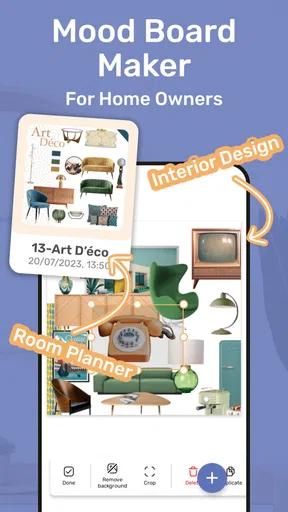
When I’m planning a room, the hardest part is often getting scattered ideas to look like one clear direction. MoodBoard maker - HomeBoard is aimed at that in-between stage: collecting visual inspiration and arranging it into a board I can react to before making bigger decisions. I see its strongest use as a practical sketchbook for interior ideas, not a substitute for measuring a room or choosing finishes with confidence. That distinction matters: a mood board can help me decide whether a warm wood look and muted green belong together, but it cannot tell me whether a sofa will fit through the door.
A visual workspace for early decisions
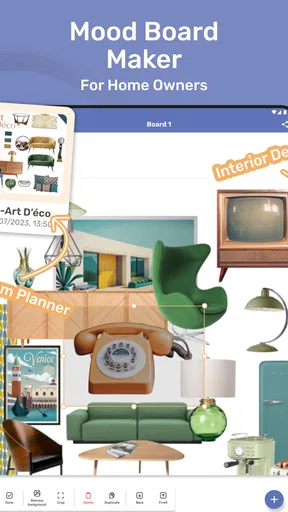
HomeBoard is a free house-and-home app from VDMNSZK Ltd. Its focus is mood-board making, which makes it more directly useful for shaping a look than general-purpose notes or a camera roll. I can bring images together, add text and color, and change the order of elements until the board tells a coherent story. The app has an average rating of 4.1 from around 330 ratings, and has passed 50,000 installs. Those figures suggest that it has found an audience, though they don’t tell me whether its workflow will suit every project.
What I like about this type of tool is the way it turns vague taste into something I can inspect. Instead of saying “I want a calmer living room,” I can put together images that show the kind of lighting, fabrics, furniture, and colors I mean. The board becomes a conversation aid as much as a design exercise: I can show a housemate what I have in mind rather than expecting them to picture it from a description.
How I’d use it for an actual room
Imagine I’m refreshing a bedroom without replacing everything. I would start by gathering a few reference images for the bedding, wall color, and bedside lighting, then add a short note about what must stay, such as the existing wardrobe. I’d use the board to compare the overall mood of two directions rather than trying to settle every purchase at once. A restrained palette might feel restful on screen, while a more colorful option could make the room feel personal; seeing both assembled makes that choice easier to discuss.
A useful habit is to label images with what I like about them, not just what they show. “Warm tone,” “simple shape,” or “soft lighting” is more actionable than a board full of attractive but unexplained pictures. That small bit of writing can also stop me from treating every image as a shopping target. The point is to identify the qualities I want to carry into my own space, not to copy a finished room item for item.
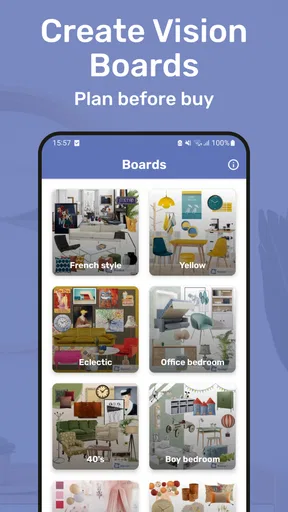
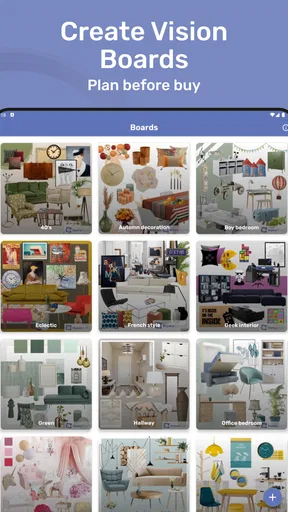
I would also keep separate boards for separate decisions. One board for a room’s broad style and another for a specific detail, such as a rug or wall treatment, can be easier to review than one crowded canvas. That is a workflow choice rather than a claim about a special app function, but it helps make the visual material useful: I can look at the overall direction without losing it among tiny comparisons.
Getting Started with HomeBoard
First off, downloading and setting up MoodBoard maker - HomeBoard is a breeze. It’s available on both Android and iOS, and installing it is as simple as pie. Once you launch the app, you’re greeted with a clean and intuitive interface. It’s like the app is saying, "Come on in; creativity awaits!"
The app offers a quick tutorial for beginners, which I found super helpful. It’s like having a friendly guide showing you the ropes, ensuring you’re not lost in the woods. The tutorial covers all the basics, from adding images to customizing your board with text and colors.
Features That Spark Creativity
HomeBoard is packed with tools that make creating mood boards not only easy but also fun. You can import images from your gallery or use the built-in search to find stunning visuals online. I was particularly impressed by the drag-and-drop feature. It's smooth and responsive, allowing you to arrange elements with precision.
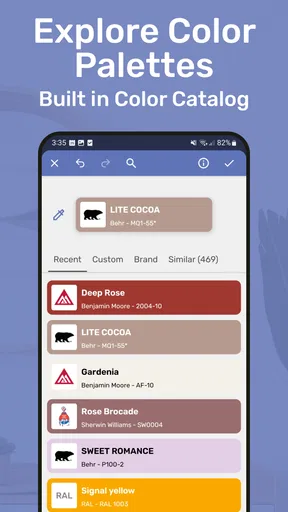
One of the standout features is the color palette tool. You can extract colors from any image and apply them to your board. This is a game-changer if you’re into design or just love color coordination. And guess what? You can even save your custom palettes for future projects!
Building a board that helps rather than overwhelms
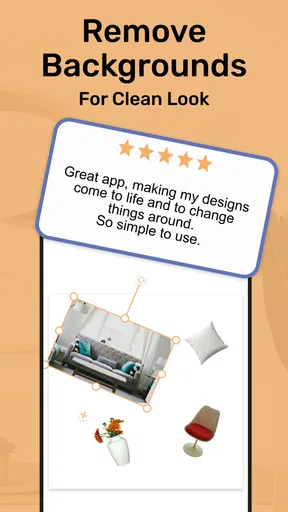
The image search and gallery import give me two different starting points. Search is handy when I’m still exploring a look, while my own photos are better when the project is tied to a real room: a photo of the floor, a curtain, or a piece I intend to keep can ground the rest of the board. I’d begin with a few strong references, then add only images that answer a question. If I keep adding pictures just because they are attractive, the board can become a scrapbook rather than a decision tool.
The palette feature has a particularly useful role before shopping. I can pick out colors from an image I already like and use them to judge whether other references belong in the same direction. That does not guarantee that paint, fabric, or wood will look identical in real life, since screens and materials vary. I treat extracted colors as a way to compare relationships—warm against cool, pale against dark—not as a reliable specification for buying a precise shade.
Another trade-off is that a visual board can make a room feel more settled than it really is. A beautiful arrangement of references does not account for dimensions, natural light at different times, cleaning needs, or how a material will feel in daily use. I’d use HomeBoard to narrow options, then check practical details separately before spending money. This is especially important for large furniture and finishes, where a pleasing image can hide a poor fit.
Personalizing Your Boards
What’s a mood board without a personal touch? HomeBoard lets you add text with various fonts and styles. You can even adjust the opacity, which adds a professional touch to your designs. I spent a good chunk of time experimenting with different fonts and was amazed at how easy it was to get the look I wanted.
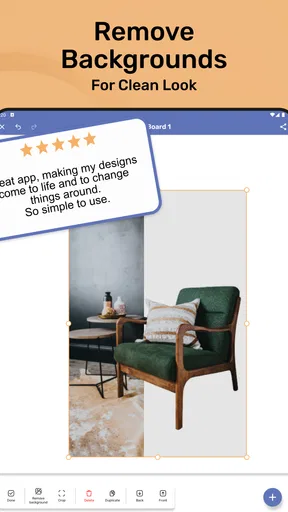
Another nifty feature is the layering option. It’s like having Photoshop in your pocket! You can layer images and text, adjust their order, and create a depth that makes your board pop. This feature really allows your creativity to shine through.
Who will get the most from it
I’d recommend HomeBoard to renters planning a reversible refresh, homeowners trying to settle on a room’s style, and students or hobbyists who want to communicate a visual concept without learning a full design program. It is also a sensible fit for someone who enjoys comparing references and wants a dedicated space for them instead of juggling screenshots, notes, and saved posts.
It is less suited to a person who needs a measured floor plan, detailed renovation estimates, or technical interior-design drawings. A mood board is about visual direction; a room planner or CAD-style tool is better when exact dimensions and placement are the priority. Likewise, if I only need to save a couple of inspiration images, my existing photo album may be quicker. HomeBoard makes more sense when I want to arrange, annotate, and refine a collection into a point of view.
For a shared project, I would first establish a simple routine: agree on the question the board should answer, then ask each person to add references that support a direction. That keeps feedback focused. The published description of collaboration and sharing may sound ideal for group work, but in practice I’d still confirm that everyone can access and edit the same board as expected before relying on it for a time-sensitive decision. A quick test with a small project is a safer start than building an entire renovation plan around any one app.
Sharing and Collaborating
Once you’ve crafted your masterpiece, sharing it is as easy as tapping a button. HomeBoard lets you export your creations in high resolution, perfect for printing or posting online. And if collaboration is your thing, you can invite friends or colleagues to view or edit your boards. It’s a great way to work on projects together, even if you’re miles apart.
Sharing options include social media platforms, email, and even cloud services, making it super versatile. I found this especially handy when I wanted to get feedback from friends on my latest design.
When I ask for feedback, I’d send the board with a narrow question—such as which of two color directions feels more consistent—instead of asking whether someone likes the whole room. Specific prompts tend to produce useful reactions. I’d also keep a copy of any important reference images outside the board if they are hard to replace, and check an exported version before printing or presenting it. A board that looks clear on a phone may need a closer look on a larger screen.
HomeBoard is free to download, with optional in-app purchases ranging from $1.99 to $39.99 per item. I would start with the free experience and decide whether any paid option solves a real need before spending. That is a better approach than paying simply because a project feels important; for a straightforward board, the basic workflow may be enough, while someone who uses the app regularly can judge the value of upgrades for themselves.
Performance and Usability
The app runs smoothly without any noticeable lags or crashes, even on my slightly outdated device. It’s optimized to ensure that you’re not constantly dealing with annoying glitches. The developers have really done a great job in making sure that the user experience is top-notch.
Navigation is straightforward, and the app’s responsiveness is commendable. It feels like the developers really listened to user feedback and crafted an app that focuses on efficiency and ease of use.
The current version is 1.11.1, and the listed minimum operating-system requirement is version 8.0. It is rated for Everyone, so its subject matter is suitable for a broad audience. Those details make it easier to judge whether it is an option for a particular device or household, but I would still check the app’s current compatibility in the relevant store before planning a project around it.
Where it fits among the alternatives
Compared with a general notes app, HomeBoard is more visual by design: images, text, and color can sit together as parts of one composition, which helps when the question is about mood rather than a checklist. Compared with a social feed or saved-inspiration folder, a board gives me more control over how references relate to one another. The trade-off is that a specialized canvas takes more arranging than simply saving a picture, so it is worthwhile only when I want to make a decision or explain an idea.
Against full room-planning software, the distinction is clearer. A planner is the better choice when I need to test furniture placement or work to precise dimensions. HomeBoard is better earlier in the process, when I am choosing a visual language and do not yet want to lock in a layout. I would happily use both in sequence: collect a direction here, then move to a planning tool once I know what kind of room I am trying to create.
Wrapping It Up
All in all, MoodBoard maker - HomeBoard is a fantastic tool for anyone looking to unleash their creative potential. Whether you’re a designer, a student, or just someone who loves to express ideas visually, this app is worth checking out. It’s intuitive, packed with features, and offers a seamless user experience.
So, why not give it a try? Dive into the world of mood boards and discover just how fun and fulfilling it can be to bring your ideas to life. Happy creating!
My recommendation is strongest for people who want to turn inspiration into a conversation or a more considered shortlist, especially before buying decor or committing to a room’s look. I would skip it if I needed exact plans, reliable construction guidance, or a tool that handles every practical part of a renovation. Used for what it is—a visual place to collect, arrange, and compare ideas—HomeBoard offers a friendly way to make the next design decision feel less abstract.
Verdict
Strengths of MoodBoard maker - HomeBoard
- Intuitive interface for easy navigation.
- Wide range of templates available.
- Customizable text and fonts.
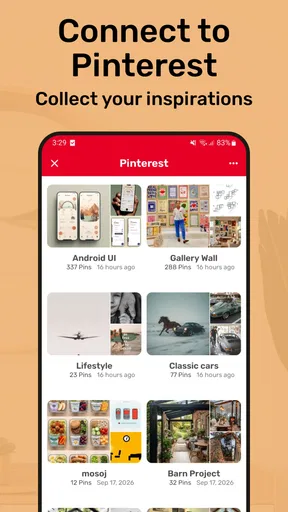
- Seamless integration with social media.
- Supports high-resolution exports.
Limitations of MoodBoard maker - HomeBoard
- Limited free version features.
- Occasional lag on older devices.
- Requires internet for full functionality.
- In-app ads can be distracting.
- Subscription model for premium access.
Similar Picks in This Category
View All
Universal TV Remote Control
CodeMatics Media Solutions3.9

AlfredCamera Home Security app
Alfred Systems Inc.4.7

Planner 5D: AI Home Design
Planner 5D4.5

Universal Tv Remote-Cast to TV
One Music Player4.1

Zillow: Homes for Sale & Rent
Zillow Group4.8

99acres Buy/Rent/Sell Property
infoedge.com4.3
Frequently Asked Questions
What features does HomeBoard offer for creating mood boards?
HomeBoard provides a variety of features for crafting mood boards, including customizable templates, a vast library of images and stickers, and drag-and-drop functionality. Users can also upload their own images, apply filters, and adjust layers to create personalized designs. Additionally, the app supports collaboration, allowing multiple users to edit a board simultaneously.
Is HomeBoard suitable for professional designers?
Yes, HomeBoard is designed to cater to both casual users and professional designers. It offers advanced tools such as color palettes, font customization, and high-resolution exports. The user-friendly interface ensures that even those new to design can create stunning mood boards, while professionals can take advantage of the app's more sophisticated features.
Does HomeBoard require an internet connection to function?
While HomeBoard can be used offline for basic functionalities like creating and editing mood boards, an internet connection is required to access certain features. These include syncing boards across devices, downloading additional content from the app’s library, and sharing projects with others. Offline capabilities ensure flexibility in various situations.
Are there any costs associated with using HomeBoard?
HomeBoard offers a free version with basic features, but there are in-app purchases and subscription options available for users who want to unlock premium content. The premium version provides access to exclusive templates, an expanded library of design elements, and the ability to remove watermarks from exported boards.
How does HomeBoard handle user privacy and data security?
HomeBoard takes user privacy and data security seriously. The app complies with GDPR regulations and employs encryption to protect user data. Personal information is only used to enhance the user experience and is not shared with third parties without consent. Users can also manage their privacy settings within the app.
